Monitoring and control of a Škoda vehicle through the official public MyŠkoda API.
Documentation of the plugin in version 0.89 beta, published on 15/10/2026. It describes what the public Škoda API allows at that date (version 1.1.0). Škoda may change its API: what is written here, in particular the request quota and the list of available commands, applies to this version. Škoda's API documentation: public.api.connect.skoda-auto.cz/docs, with its changelog and its detailed technical reference, which lists every request the plugin can send to Škoda.
Requirements: Jeedom 4.4 or later (the plugin is tested on Jeedom 4.6), on Debian 12 or Debian 13. Debian 11 has reached end of life (it has not been maintained since 31 August 2026): the sensible path is to move to Debian 12 at least. That said, the plugin works on it today: a tester runs version 0.81 on Debian 11.11 with PHP 7.4.33 (installation, update, vehicle reading, charging locations, diagnostic report). The plugin has no daemon and no dependency.
Languages: French and English. The screens follow the Jeedom language (Settings → System → Configuration → General). The diagnostic report and the plugin log stay in French. Command names are given in the Jeedom language at the time the vehicle is added. The screenshots in this documentation were taken in French.
Units: the “Display units” setting of the plugin configuration offers “Metric (km)” or “Imperial (miles)”. In imperial, the tile, the logbook and its exports show miles, mph, miles per kWh (electric) or miles per UK gallon (combustion). It applies to all vehicles and does not depend on the language. Only the display changes: command values stay in kilometres, temperatures in °C. The “Currency” setting, right next to it, chooses the symbol shown next to prices and costs (€, £, CHF or $); no amount is converted, prices are entered in your currency.
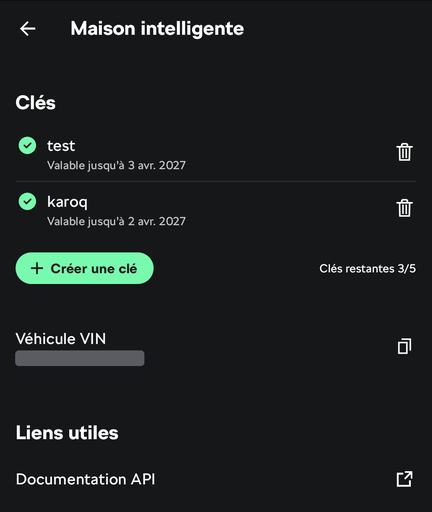
On the phone, in the MyŠkoda app: Profile, then Smart home. Create a key and copy it.
This screen lists your keys (five at most), lets you create one and shows the vehicle identification number (VIN), to be copied for step 3. A key is valid for the vehicles selected when it was created, and it expires: its end date is shown under its name.
In the plugin configuration, “MyŠkoda API key” section, paste the key then save. The two reading rates (while parked and while charging, and while driving) can be left as they are. Once the key is saved and a vehicle added, the banner at the top of this page shows until when the key is valid and whether your vehicles are up to date; the “Your vehicles” table gives, for each one, its battery or fuel level, its last update and the requests it has left this hour.
In the plugin, click “Add a vehicle” and enter its VIN (17 characters). The plugin checks with Škoda that the key covers this vehicle, then creates the device, named after the designation Škoda gives the vehicle, in the Energy category. Adding it costs two requests from the hourly quota: the check, then the first reading. All that is left is to choose its parent object.
Škoda does not let a plugin list the vehicles of an account: this is why the VIN is asked for, once per vehicle.
Commands are created at the first reading, done as soon as the vehicle is added: only those the vehicle provides are created. Some are created hidden (cable locked, boot, bonnet, lights, charging mode, key expiry…): tick their “Show” box to make them visible.
PLEASE READ: the logbook starts empty.
Škoda provides no history to plugins. Trips, charging sessions, refuelling and statistics are rebuilt by the plugin from what it reads itself, starting from its installation. Right after installation these tabs are therefore empty: they fill up as you drive. The history shown by the MyŠkoda app is not imported.
The plugin creates the commands at the first reading, according to what the vehicle provides: an electric car has no fuel commands, a combustion car has no charging commands, and an action command only exists if Škoda announces it for that vehicle. The lists below give the name of each command as created in a Jeedom set to English, its type, and its value. A binary command is 1 for yes and 0 for no. Dates are written YYYY-MM-DD HH:MM:SS, in Jeedom time. When a state is given “as sent by Škoda”, the value is an upper-case English word; the tile shows it in plain words. Command values are always in metric units (km, km/h, °C), even when the “Display units” setting is on “Imperial (miles)”: that setting only converts what is shown on the tile and in the logbook. A scenario therefore always compares kilometres.
ELECTRIC, GASOLINE, DIESEL, HYBRID, CNG or LPG.CONNECT_CABLE (cable unplugged), READY_FOR_CHARGING (ready to charge), CHARGING (charging), CONSERVING (maintaining charge), DISCHARGING (discharging), CHARGING_INTERRUPTED (charging interrupted).MANUAL.MANUAL) and “Preferred charging times” (PREFERRED_CHARGING_TIMES), on an Elroq. If the vehicle offers at least two modes, the tile shows the current mode in its Charging block, with a list to change it (since version 0.87); unticking “Show” on this command removes the list from the tile.The four “Charging location…” commands exist if charging locations are defined in the MyŠkoda app.
Experimental feature, never tried on a vehicle (see the “Experimental features” section, further down). These commands only exist if the “Enable experimental features” box is ticked in the plugin configuration and the vehicle allows its charging locations to be changed; they are created at the next reading. Three commands per charging location, hidden on the tile (they are meant for scenarios). Their name starts with the charging location's name when they are created, here “Home”; renaming the location in the app does not rename the commands, and Jeedom removes apostrophes from names.
#[Home][Sun][Start]#-#[Home][Sun][End]# (Jeedom replaces each #…# with its value before sending the command).The charging times are only used if the “Preferred charging times” charging mode is chosen: in the app, or with the “Select charging mode” command. Otherwise the car ignores their schedule (observed on a tester's Elroq).
Charging times are numbered in the order Škoda returns them, which is the app's order (checked on an Elroq); when the box is ticked, the tile shows them numbered (“See all locations”). The plugin reads the charging location again just before sending it and only changes the targeted charging time: limit, minimum charge, departure times and the other charging times are sent back unchanged. Each change costs three requests (reading, sending, reading again one minute later); a charging time already set that way costs only one, and nothing is sent. Škoda refuses a change to a charging location that follows the previous one too closely (observed by a tester): a change that arrives less than 90 seconds after a sending to the same location is queued, then sent by the plugin about two minutes later, grouped with the ones that follow it. A scenario can therefore chain several commands without a pause; the command returns straight away, and a failure of the delayed sending is reported in the Jeedom message centre. A charging time number that does not exist or badly written hours are refused before anything is sent, with a message.
OFF, COOLING, HEATING, HEATING_AUXILIARY, VENTILATION, COMPLETED.These commands exist once you have entered the due dates on the vehicle page (see “Service”).
A command is sent to the vehicle; its effect shows at the next re-reading, one minute later. This delay is set in the plugin configuration (“Advanced settings”, then “Re-reading after a command”, from 20 seconds to 2 minutes): shorter, the state follows faster in a scenario; too short, the car has not answered yet and the state will only change at the following reading.
Heating the car before leaving. On an electric vehicle, this is the “Start air conditioning” command (or “Start air conditioning at”, with a temperature): it heats or cools the cabin according to the target temperature, and requires no code. It can be used in a scenario, for example in the morning if the outside temperature is low.
Preheating with the car unplugged: you decide. By default, the plugin asks for nothing in particular: if the car is not plugged in, its own setting (in the car or in the MyŠkoda app) decides whether it heats on its battery or refuses. When the vehicle reports this setting, the info command “Air conditioning without external power allowed” shows it; not all do (an Elroq, for example, does not send it). To have the plugin itself ask for heating on battery power, tick the box “Allow air conditioning on battery power, car not plugged in” on the device page. It is unticked by default, so that a scenario never uses up your range without you having wanted it: heating on the battery reduces the range available when you leave.
Auxiliary heating and S-PIN code. Some combustion and hybrid vehicles have an auxiliary heating (parking heater). Škoda requires the S-PIN code to start it. This code is specific to each vehicle and to its primary user: enter it on the vehicle's device page, field “S-PIN code of this vehicle”. It is stored encrypted in Jeedom and is never written to the logs. The “Start auxiliary heating” and “Stop auxiliary heating” commands only appear if the vehicle is equipped with it; the heating duration is the one set on the vehicle. It is the only command that requires this code.
The tile shows the vehicle picture provided by Škoda, the states (locking, doors, windows, cable), the battery and range, charging and air conditioning with their buttons, and the parking address.
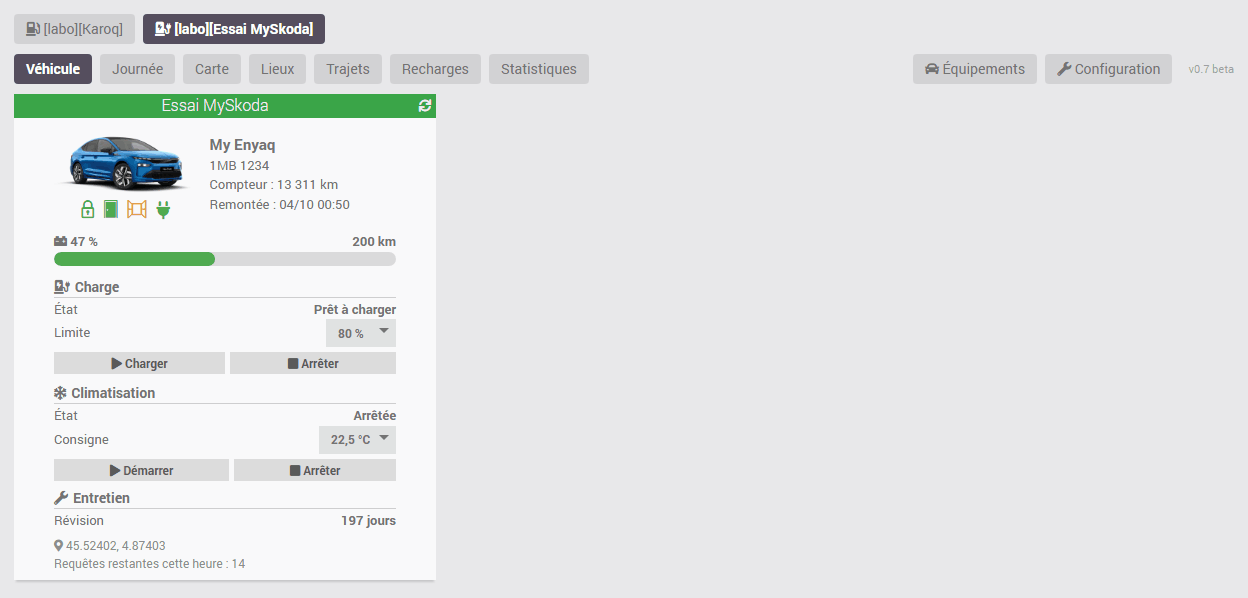
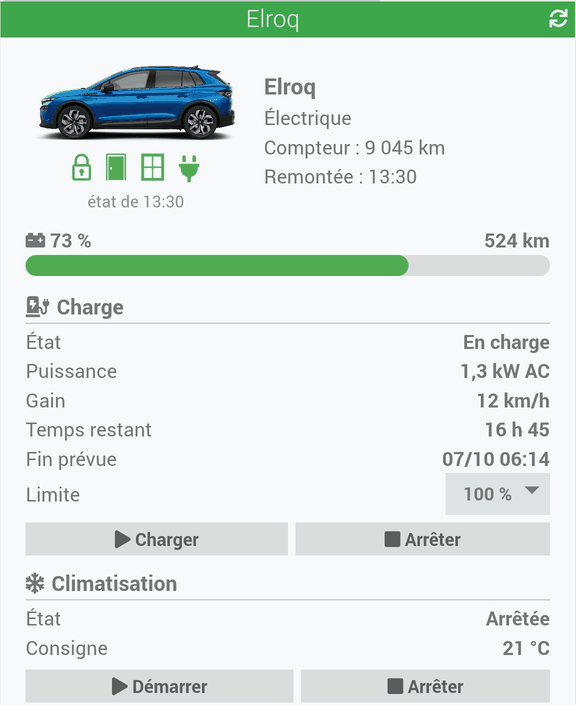
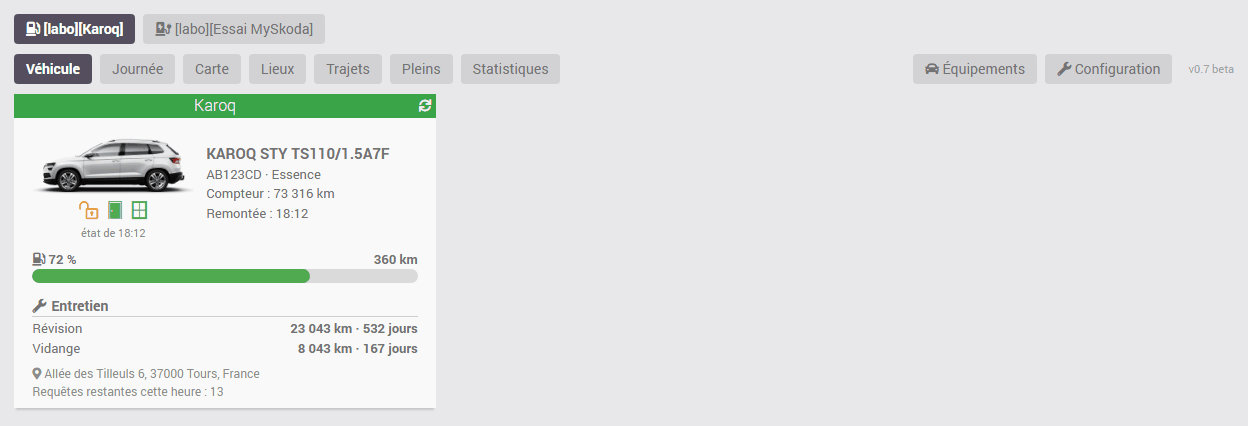
On these screenshots, the addresses, the number plate and the places are examples.
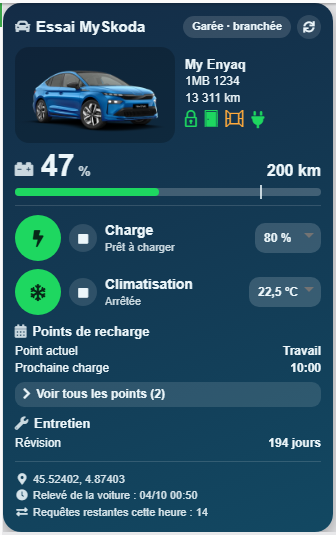
The logbook starts empty when the plugin is installed and builds up as you drive: Škoda provides no history.
Enable “Show the desktop panel” in the plugin configuration: a MySkoda entry appears in the Home menu. “Show the mobile panel” does the same in the mobile app and the mobile version of Jeedom. The logbook is the same on both. The mobile version of Jeedom has no settings page: adding a vehicle and configuring the plugin are done in the desktop version, to which two buttons, “Vehicles” and “Configuration”, link at the bottom of the mobile logbook, for administrators.
At the top of the logbook, one button per vehicle shows its name, its state (parked, charging, driving) and its battery or fuel level, read again every minute in Jeedom without asking Škoda anything; with several vehicles, it selects the one you are looking at: every tab applies to that vehicle. The logbook adapts to its energy: battery, kWh and charging sessions for an electric car; fuel, litres and refuelling for a combustion car. For a plug-in hybrid, two buttons, “Electric view” and “Fuel view”, select the energy shown.
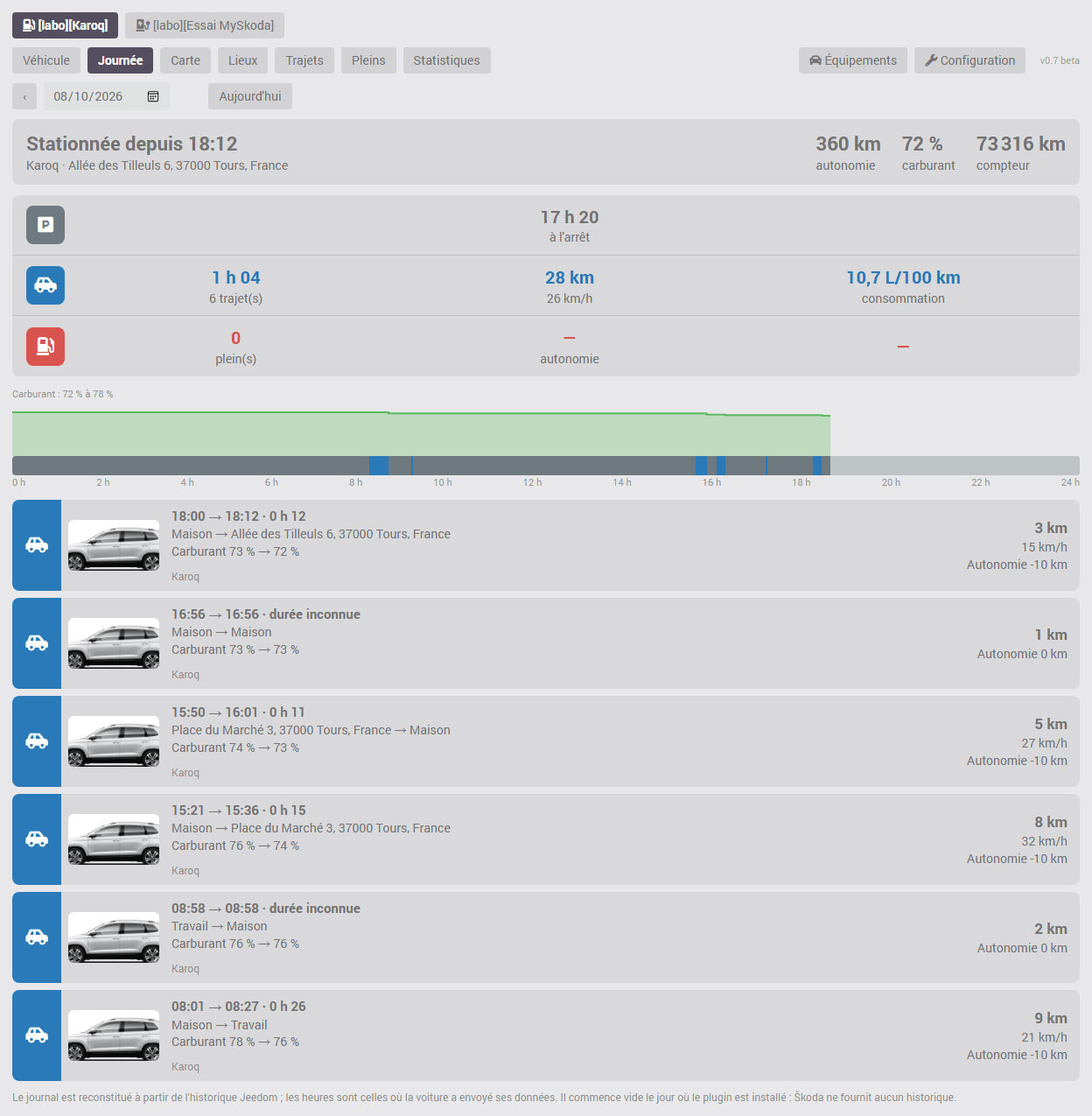
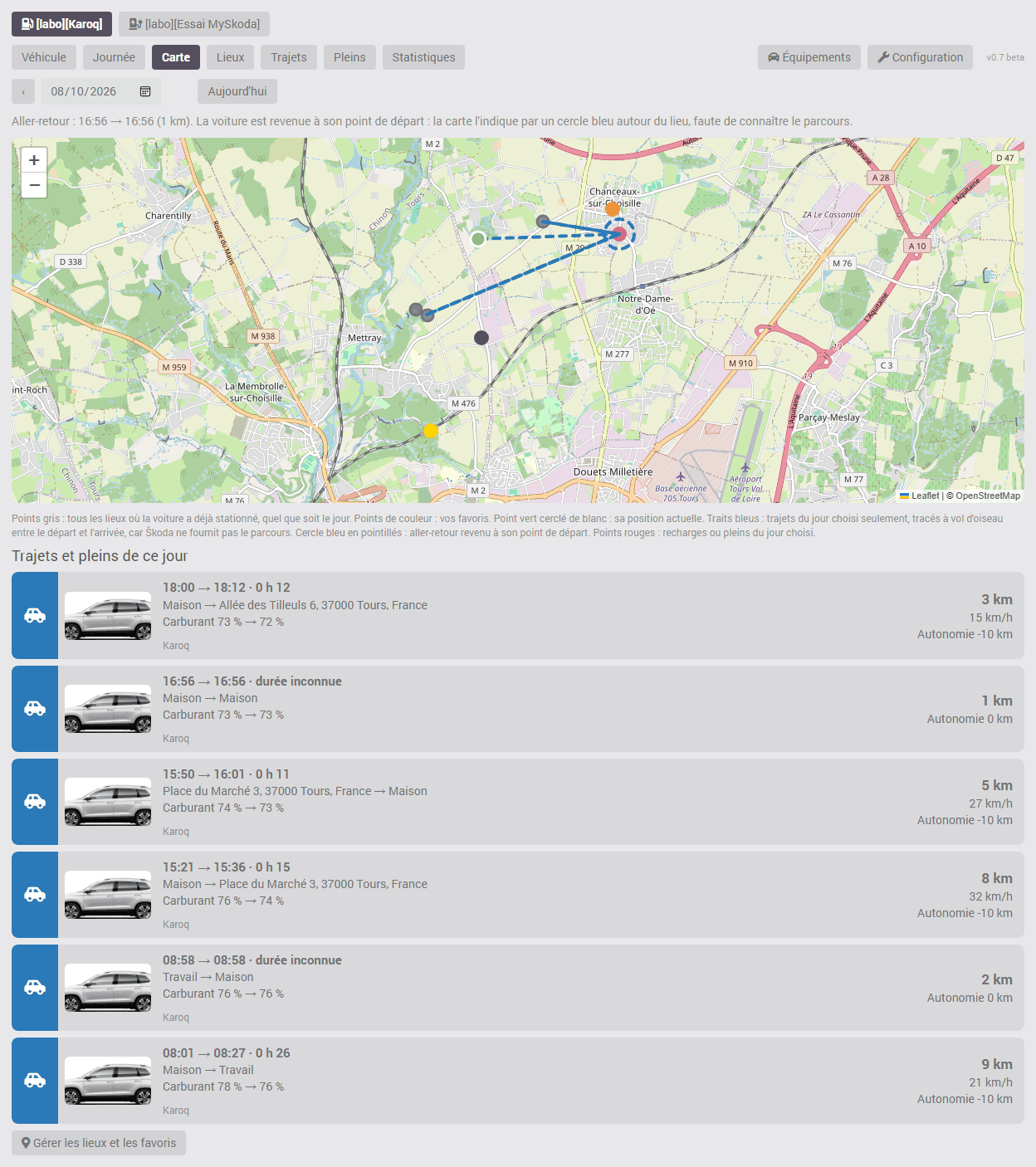
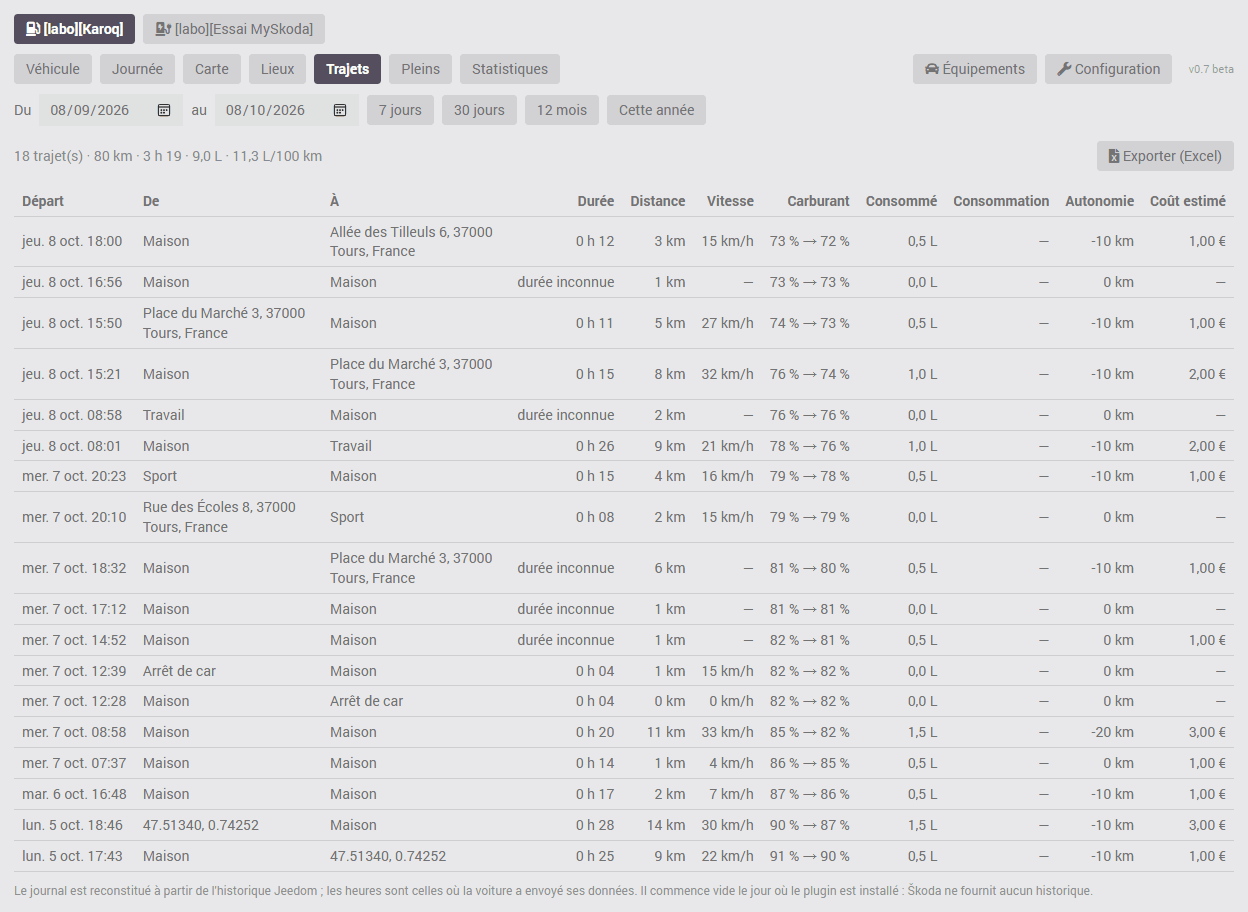
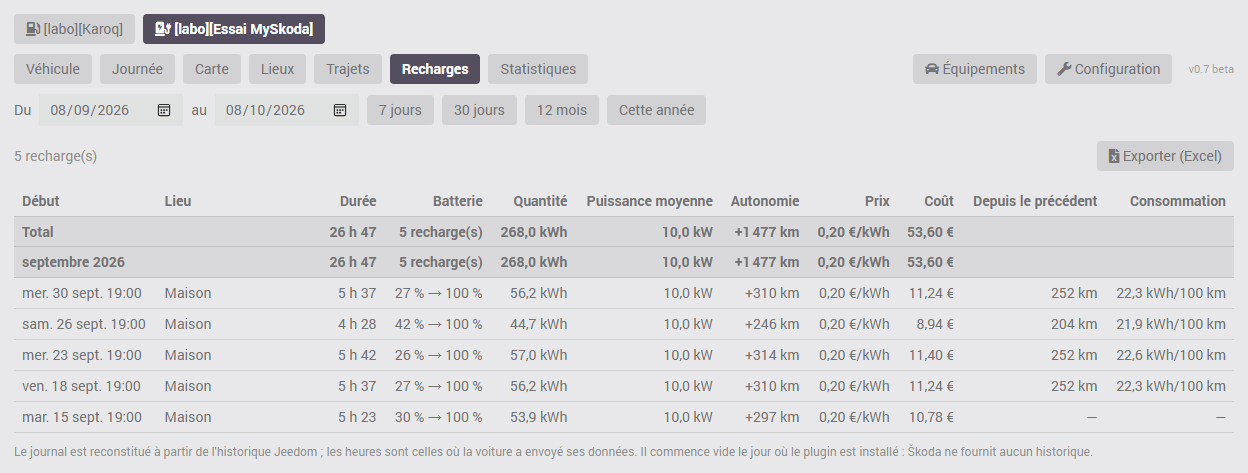
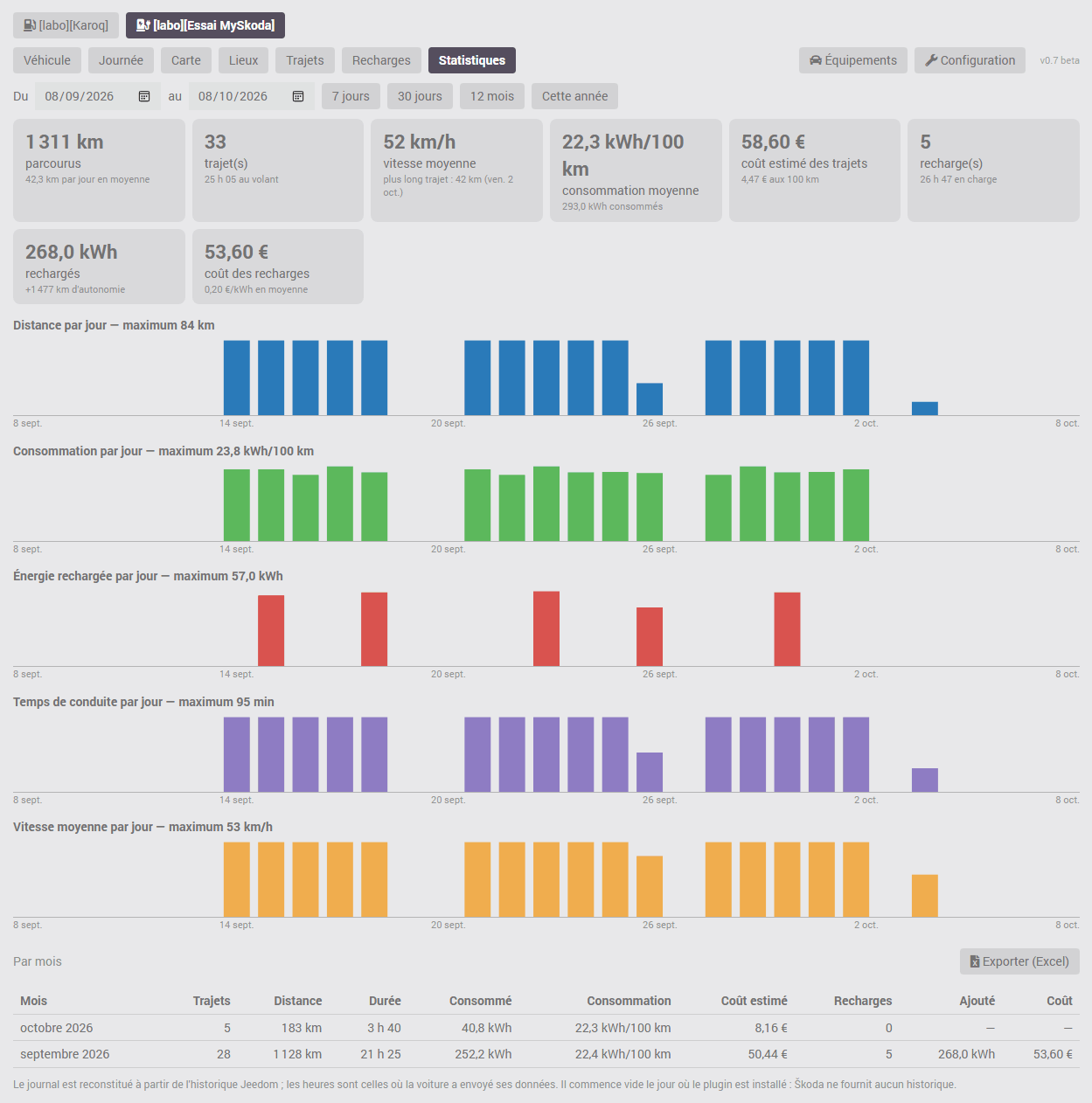
The Trips, Charging and Statistics tabs have an Export (Excel) button: it produces a CSV file that Excel and LibreOffice open directly, with one row per trip, per charging session or per month.
Trips and charging sessions are rebuilt from the Jeedom history of the “Driving” and “Charging” commands. The car sends its data to Škoda at departure and at arrival; the plugin dates each value with the time of that transmission, so trip times are exact whatever the reading rate. A trip made entirely between two readings is detected from the mileage increase: its distance is right, its duration is shown as unknown.
Short stops. Škoda only gives the last known state of the vehicle, with no history. A stop of a few minutes (dropping someone off, picking up a parcel) that starts and ends between two plugin readings is therefore not seen: several short trips in a row appear as one, whose distance and departure and arrival times remain right. While driving, the plugin reads every 5 minutes by default, and keeps this rate for 10 minutes after stopping and after the start or end of a charging session; this rate is set in the plugin configuration, within the limit of 20 requests per hour imposed by Škoda. Do not untick the “Log history” box of the plugin commands, and do not change their history mode: the logbook is entirely drawn from the Jeedom history. Without it, it stays empty, and what was not logged cannot be rebuilt afterwards. The commands needed are: Driving, Mileage, Latitude, Longitude, Battery and Electric range (or Fuel and Fuel range), Charging and Charging power, as well as Cable plugged in if the “Managed charging” option is ticked. If one of them is no longer logged, the logbook says so at the top of the page. The volume is small: a value is only recorded when the car sends new data.
Places are the parking addresses given by Škoda, which the plugin remembers as the car stops. Škoda gives no position while a vehicle is driving: on the map, a trip is a straight line between its start and its end, not its route. For the same reason, a round trip without a stop (the car comes back to park where it left from) has no line: it is shown as a dashed blue circle around the place, and its distance is that of the odometer.
Two parking stops less than 60 metres apart are the same place. The position sent by the car is not always exact: it can be off by more than a hundred metres while the car is parked in the same spot, which creates a second place.
“Places” tab: your favourite places. This tab of the logbook gathers everything about places: their map, adding a favourite and the list of known places. A favourite (Home, Work, School…) attaches to itself every parking stop made within its radius, and its address no longer changes. Jeedom “Administrator” and “User” accounts can change places; a “Limited user” account can if it has the action right on the vehicle (the one that lets it start charging or air conditioning), otherwise it sees the list without being able to change it.
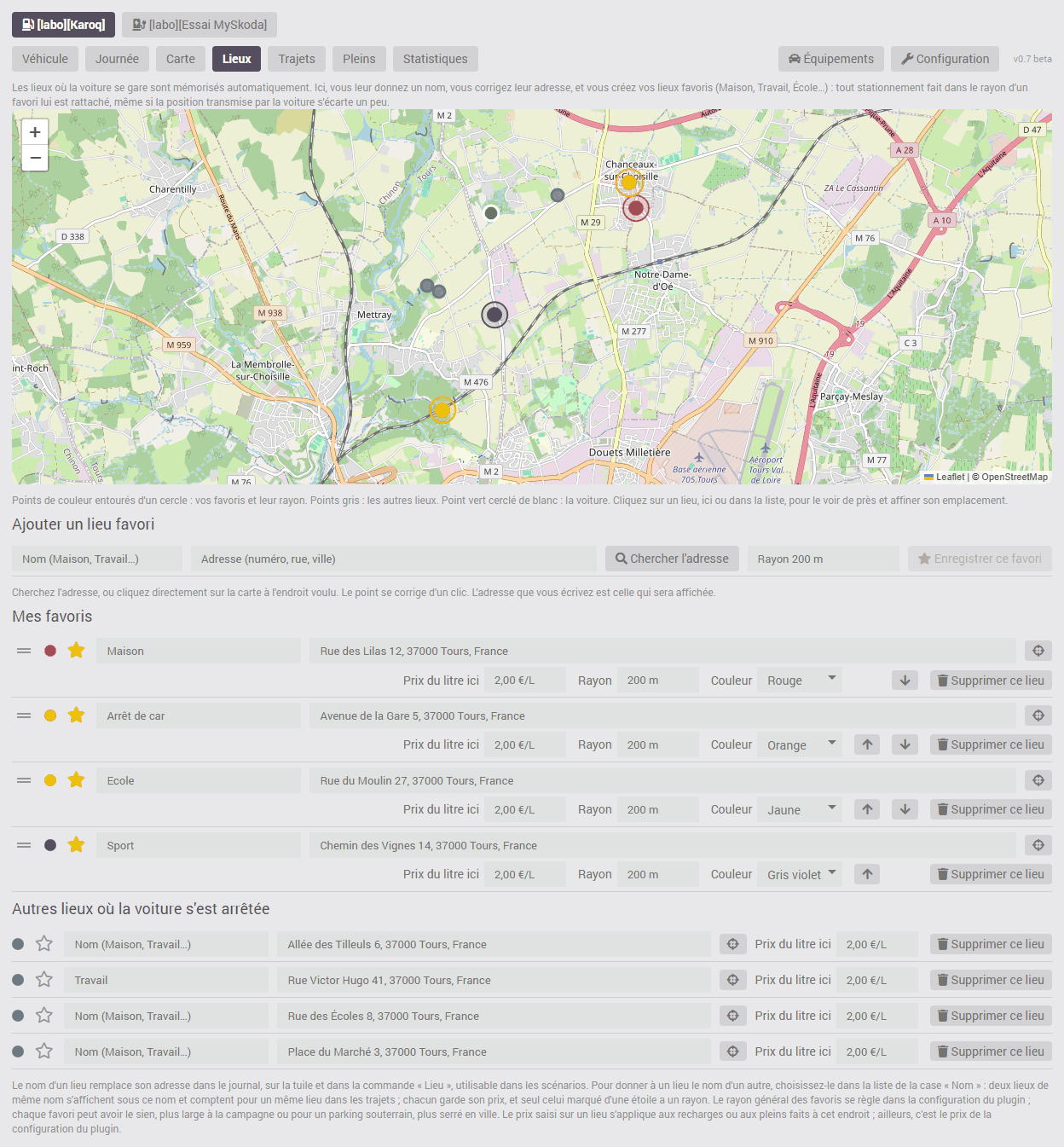
To add a favourite, give it a name, then place its point in one of these ways: type its address and click “Search for the address”, or click directly on the map at the desired spot (another click corrects the point), and finish with “Save this favourite”. The address you type is the one that will be displayed: this is the way to get the right address when the one Škoda gives for your home is wrong. The address search is done by your Jeedom with the OpenStreetMap service, only when you click the button; clicking the map sends nothing.
To review a place already saved, click its point on the map or the target-shaped button on its row, after the address: the map zooms in and shows its location in red. A click on the map moves it; “Confirm this point and check its address” confirms, “Cancel” leaves the place as it is. On confirmation, whether the point moved or not, your Jeedom asks the OpenStreetMap service for the address of this point and suggests it to you if it differs from the displayed address: you save with this address, or you keep the current address. This is the way to correct a well-placed place whose address is wrong. If the address is not found, only the position is saved.
An ordinary place lying within the radius of a favourite is no longer used: parking stops made there are attached to the favourite. If you gave it neither a name, nor a price, nor an address, it is removed from the list. Otherwise it is kept with the mention “covered by the favourite”, and it is up to you to delete it or to reduce the radius of the favourite.
The list has two parts. “My favourites” comes first: you put them in the order you want by dragging them with the handle with horizontal lines, at the start of the row, or with the arrows placed in the row settings, and each favourite has its colour, chosen from a list and used on the logbook maps (Home in green, School in red…). “Other places where the car has stopped” comes next, most recent first; beyond six, the oldest are folded behind a button.
Each row shows the essentials: the colour, the star, the name, the address and the target that opens the place on the map. Less common settings follow: the price per kWh or per litre at this place, the radius and colour of a favourite, deletion. On a computer screen they are always visible, further along the row; on a phone, they unfold with the arrow at the end of the row.
A place already known becomes a favourite by giving it a name and clicking its star, which turns yellow; a second click removes it from the favourites. Its address is corrected in the list; a corrected address is no longer replaced by Škoda's. The general radius of favourites is set in the plugin configuration (200 metres by default); each favourite can have its own (from 10 to 5,000 metres), wider in the countryside or for an underground car park where the position is imprecise, tighter in town. If Jeedom knows the coordinates of your home (general Jeedom configuration), a button offers to create the “Home” favourite at that spot, with nothing to type.
The “Name” field offers the list of names already given: to give another place the name of an existing place, pick it from this list rather than typing it again. Two places with the same name are shown under that name and count as one place in trips; each keeps its own price, and only the one marked with a star has a radius. The “Delete this place” button (bin), in the row settings, removes a place created by mistake; trips already recorded are not changed. The plugin keeps 300 places per vehicle; deleting a device erases its places.
The name given to a place replaces its address in the logbook and on the tile. The “Place” command carries it too: it can be used as a trigger or a condition in a scenario (for example “Place” equal to “Home”).
Charging driven by a scenario (solar surplus, home battery, off-peak hours). By default, the logbook counts one charging session each time the car starts charging. If a scenario starts and stops charging throughout the day, for example to follow solar panel production, this gives a multitude of small sessions, whose energy cannot be calculated. In that case, tick the box of the “Managed charging” field (“Charging driven by a scenario”) on the device page of the vehicle concerned: the logbook then counts a single charging session per cable connection, all resumptions included. It shows the actual charging time, the number of resumptions and the time the cable stayed plugged in; energy, average power and cost are calculated over the whole. For an ordinary session, done in one go, the option changes nothing. It also applies to sessions already recorded, provided the “Cable plugged in” command was logged on those days: a session made without that history stays counted resumption by resumption. It can be unticked without losing anything. For these scenarios, see also the “Re-reading after a command” setting in the plugin configuration.
Consumption. Škoda only gives the battery or fuel level as a whole percentage. For a trip or a day where the level dropped by less than 5 points, the consumption is preceded by “≈”: it is approximate, to the nearest battery point (since version 0.87; before, it was not shown). For a month or a period, it is only given from 5 points in total: the calculation covers the total (what was consumed, divided by the distance), which makes it reliable. In the Charging or Refuelling tab, each row also gives the distance driven and the consumption since the previous charging session or refuelling: this is the most accurate figure.
Values that Škoda does not provide must be entered to get all the figures: on the device, the usable battery capacity (for kWh) or the fuel tank capacity (for litres); and the price per kWh or per litre of fuel (for costs). The price is entered in two places: a general price in the plugin configuration, and, in the “Places” tab, a price specific to a place (your home, a public charger), in the “Price per kWh here” or “Price per litre here” setting of its row. For fuel, a price per litre can also be entered on a vehicle's device: it then replaces the general price for that vehicle. A charging session is counted at the price of the place where it was done, failing that at the general price; the cost of a trip is estimated at the general price.
Off-peak hours (since version 0.87). In the plugin configuration, “Off-peak hours: command” designates a Jeedom info command that is 1 during off-peak hours (the one of your meter, of a tariff or of a calendar), and “Off-peak kWh price” their price. For a charging session at home, that is at the position set in Jeedom (Settings → System → Configuration), the part of the session made during off-peak hours is counted at that price, the rest at the peak price: your place's price if it has one, otherwise the general price. The Charging tab then shows that part (“62 % off-peak”) next to the session's average price. The command must be historised: its history tells, for each moment of the session, whether it was off-peak. Charging sessions elsewhere and trip costs do not change.
Škoda sends plugins neither the inspection and oil change due dates, nor the vehicle health report. The plugin therefore offers a follow-up to be entered by hand, on the device page: inspection, oil change and roadworthiness test.
For the inspection and the oil change, enter the due value (mileage and date); for the roadworthiness test, the date only. You can also copy what the MyŠkoda app shows (Inspect, Service) in the form “in so many km” and “in so many days”: the plugin converts it when saving. It then counts down the kilometres and days left (commands “Inspection: kilometres left”, etc., usable in scenarios), shows them on the tile, and warns in the message centre when a due date goes below the warning threshold (1,000 km or 30 days by default, adjustable). After a service, enter the new due value.
Škoda may answer that part of the data (locking and openings, fuel, mileage, position…) exists on the vehicle but is disabled. The plugin shows it on the tile, in the “Services disabled” command and in the message centre. This is not set in Jeedom: check in the MyŠkoda app that the vehicle's online services are active (valid licence), that consent to data sharing is given, and that the vehicle is not in privacy mode.
Some features are written from Škoda's documentation but have never been tried on a vehicle yet. They are reserved for those who tick “Enable experimental features” in the plugin configuration (unticked by default); if it is unticked later, their commands stay in place but are refused, so that no scenario breaks. The diagnostic report says whether the box is ticked.
The tests to run and what to send back are described on the page Experimental features: tests to run. A feature stops being experimental once real tests have confirmed it; its commands then keep their name.
First attach the diagnostic report: in the plugin configuration, section “Diagnostics and support”, the “Generate a diagnostic report” button shows a text that you copy or download with the two buttons below it. It gives the version of the plugin, Jeedom, PHP and Debian, the settings, and for each vehicle its model, its options, its commands, the time of the last readings, the remaining quota, the main values, the number of trips and charging sessions over the last seven days, then the messages and the last error lines of the plugin. It contains no key, S-PIN code, VIN, number plate, device name, place, address or position: vehicles are numbered in it, and it can be sent as is. The report is written in French.
If you are asked afterwards, also attach the myskoda log at Debug level (plugin configuration, “Logs and monitoring” frame, then Analysis → Logs menu). This log contains Škoda's answers, from which the plugin removes the VIN, the number plate, the address and the parking coordinates before writing them. The API key and the S-PIN code never appear in it. The name you gave the device does appear in it.
Škoda sometimes answers without any vehicle data, every section being “unavailable”: this is seen in particular while a vehicle is driving. The plugin then keeps the last values received and says so on the tile and at the top of the logbook, with the time since which this has lasted (command “Škoda data unavailable since”). Nothing needs to be done: a trip or charging session in progress ends at the right time as soon as Škoda answers again, because the car dates its own data.